DDM Number
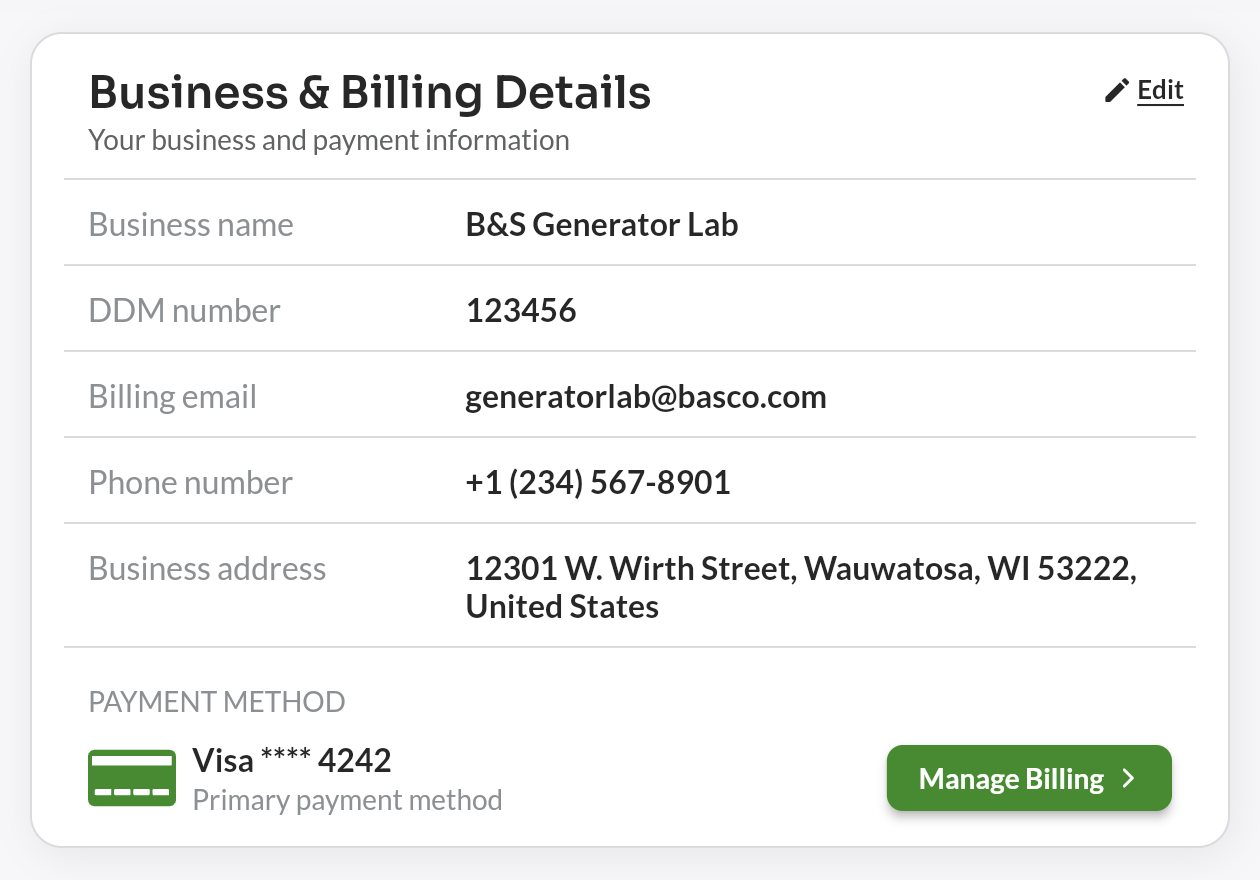
The DDM number is the dealer identifier your business receives when it registers in the partner program. In EnergyTrak it is stored on your Pro Business record and is shown on the Business & Billing tab next to your business name, billing email, and address.
Here you will learn:
- Who can view, add, and change a DDM number.
- How to add the number to your business.
- What to do if a saved number is wrong.
A DDM number can only be entered while the field is empty. Once it is saved, the field becomes read-only for everyone in the app — including EnergyTrak support. See Correcting a saved DDM number.
Who Can View and Edit the DDM Number
Access depends on your user role and on whether your account has billing access. Billing access is granted by EnergyTrak and is the same permission that makes the Subscriptions menu item appear.
| User Role | Can view DDM number? | Can add DDM number (field empty)? | Can change a saved DDM number? |
|---|---|---|---|
| Pro Admin with billing access | ✅ | ✅ | ❌ |
| Pro Admin without billing access | ❌ | ❌ | ❌ |
| Pro Technician | ❌ | ❌ | ❌ |
| Pro Support | ❌ | ❌ | ❌ |
| System Owner | ❌ | ❌ | ❌ |
| EnergyTrak Support | ✅ | ✅ | ❌ |
Two additional rules apply:
- Pro Businesses only. The DDM number belongs to a dealer business. It is never shown for independently managed businesses — those created for System Owners who are not managed by a dealer.
- Business details must be editable by you. To open the edit form you must be the billing manager of your business (or EnergyTrak support). If you are viewing a System Owner who is billed through your business, you are looking at that person's own profile information, and the business details cannot be edited from there.
If the DDM number row shows Unknown, no number has been saved yet. If you have the required role, you can still add it.
Add a DDM Number to Your Business
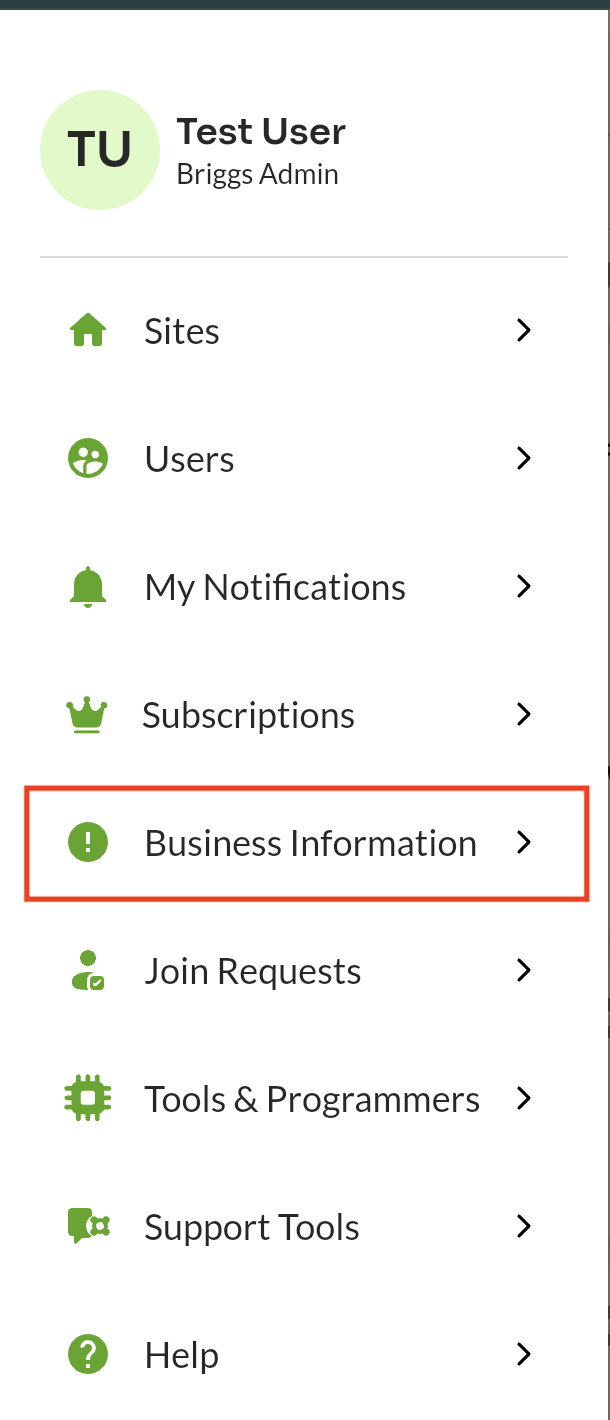
- Open the EnergyTrak app, tap the hamburger menu (three horizontal lines) in the top-left corner, and select Business Information. This opens the Business & Billing Details card for your business.
- Check the DDM number row, directly under Business name. It shows the saved number, or Unknown if none has been added yet.
-
Tap Edit in the top-right corner of the card, then enter the number in the DDM number (Optional) field. Enter it exactly as issued in your partner program registration — DDM numbers are 5 or 6 digits.
-
Tap SAVE. The card returns to the read-only view and the saved number appears in the DDM number row.
The field is optional. You can save the rest of your business details and add the DDM number later — leaving it blank does not remove a number that is already saved.
Correcting a Saved DDM Number
Because the field is write-once, a number that was saved incorrectly cannot be corrected in the app. Once a value is stored, the Edit details form shows the DDM number as plain text while the fields below it stay editable:
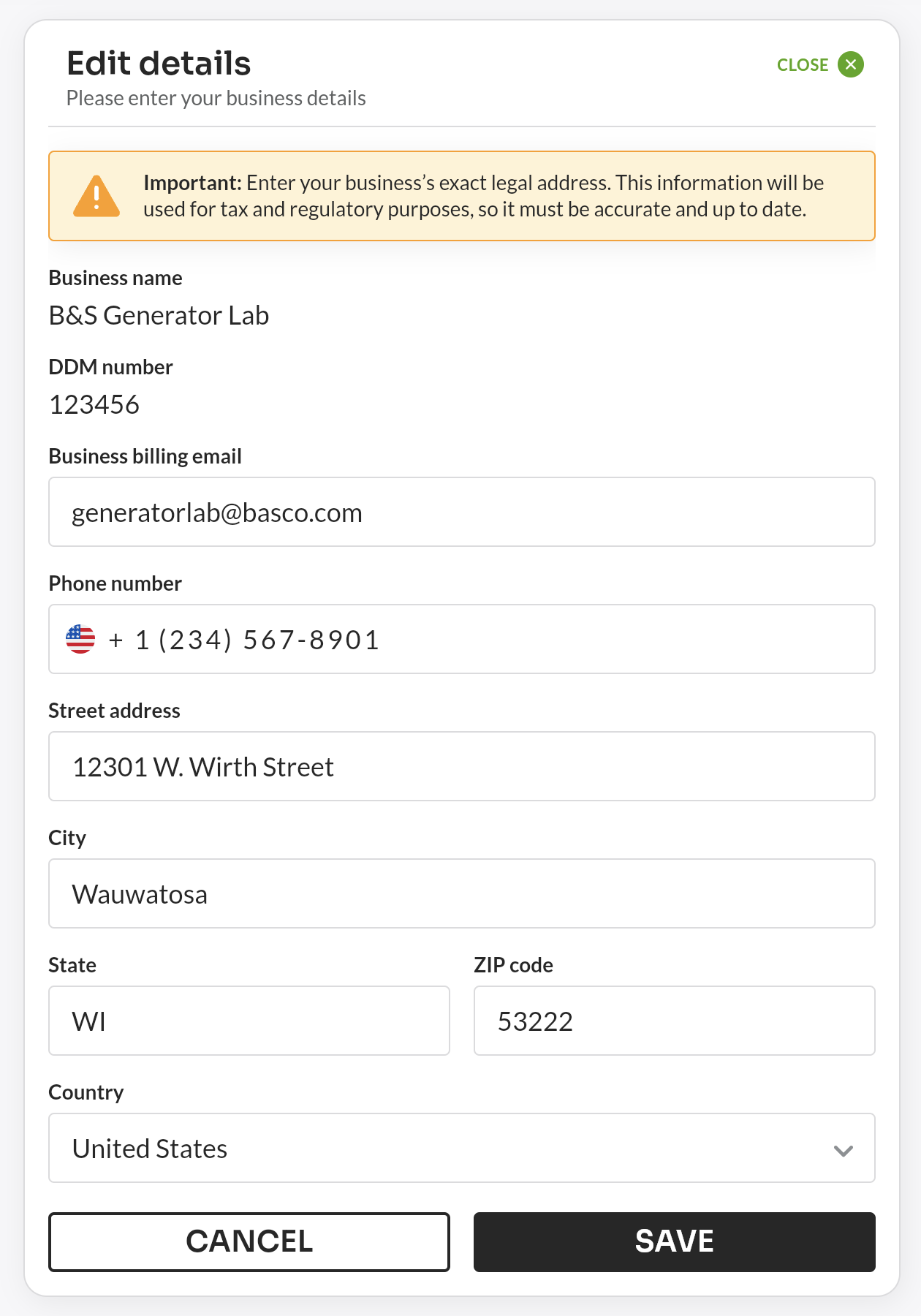
Contact EnergyTrak support with your business name and the correct DDM number. Because the field cannot be edited in the app, the correction is made directly on your business record for you.
Double-check the number before tapping SAVE — it is the fastest way to avoid a support request.
Additional Resources
- For an overview of roles and permissions, see Users.
- For billing and payment method management, see Navigating Subscriptions.
- To reach the support team, see Contact Support.