Notifications
EnergyTrak provides automated alerting of important system events through notifications. Each notification can be delivered in up to two ways:
- Push Notifications sent directly from the EnergyTrak app.
- Email notifications sent to the user's email.
Managing Notifications Preferences
- System Owners: Can only view and edit their own personal settings.
- Pro Users: OEM Admins, Pro Admins, and Pro Technicians can open and edit the notification settings for any user within their business's scope directly from the User Details screen.
- Auditing: To improve tracking and security, a UTC timestamp is recorded whenever a user's notification preferences are updated.
Today, notifications can only be configured for the entire fleet. Activating a notification sends the alert whenever conditions trigger it on any site. Large fleets must carefully set up notifications, and we recommend following the provided guide below. A top-priority enhancement is Site-Level Notifications, enabling granular alert configuration to monitor devices with lingering issues or similar. Site Mute can be activated from the Site Dashboard screen, which will block sending of alerts from that site.
Notifications Configuration Guide
Effective notification configuration is critical to maximizing EnergyTrak's value for fleet managers and system owners. EnergyTrak offers a powerful, detailed set of notification features that, if unmanaged, can cause notification overload.
Step-by-Step Configuration
To access and configure your notification settings within the EnergyTrak app, follow these steps:
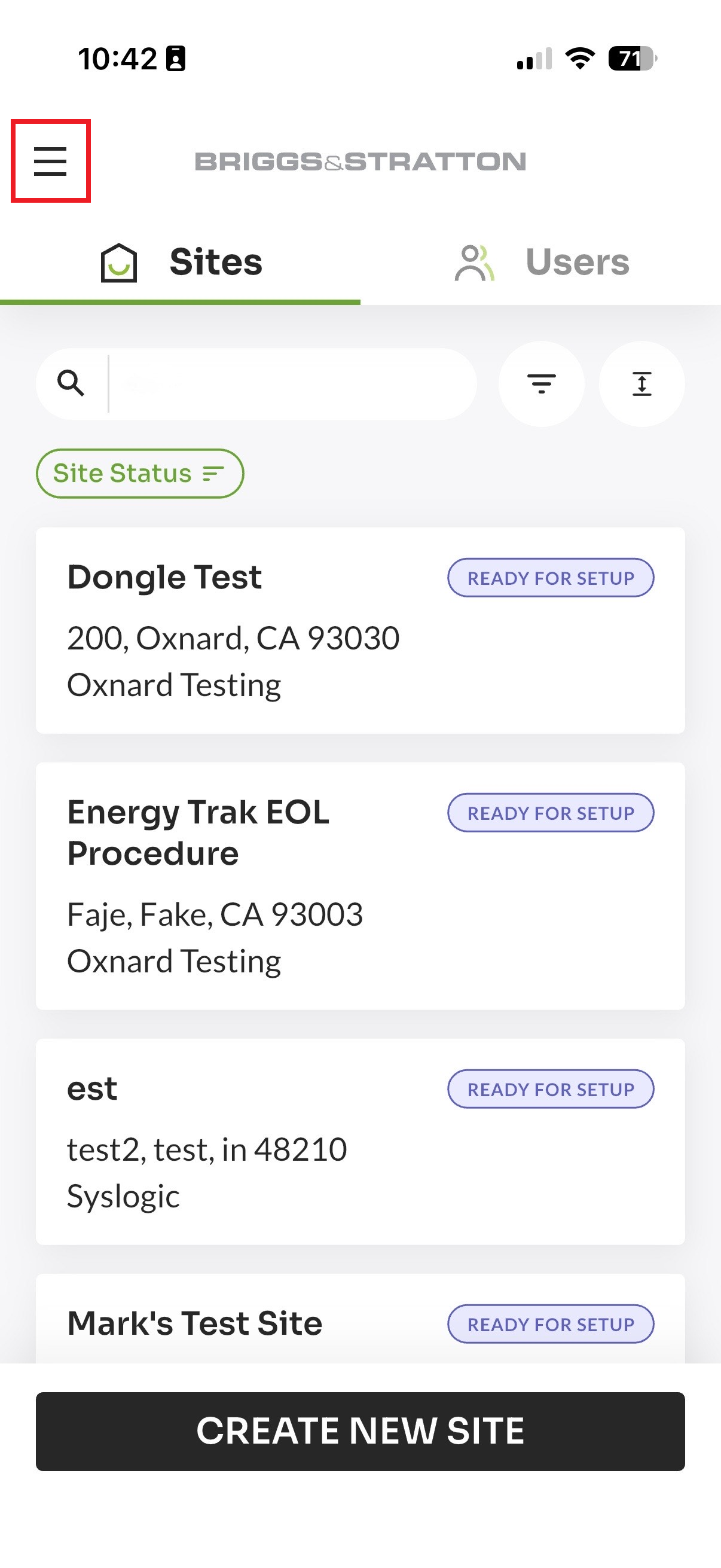
- Open the EnergyTrak app and from the main screen, tap the hamburger menu (three horizontal lines) in the top-left corner of the screen.
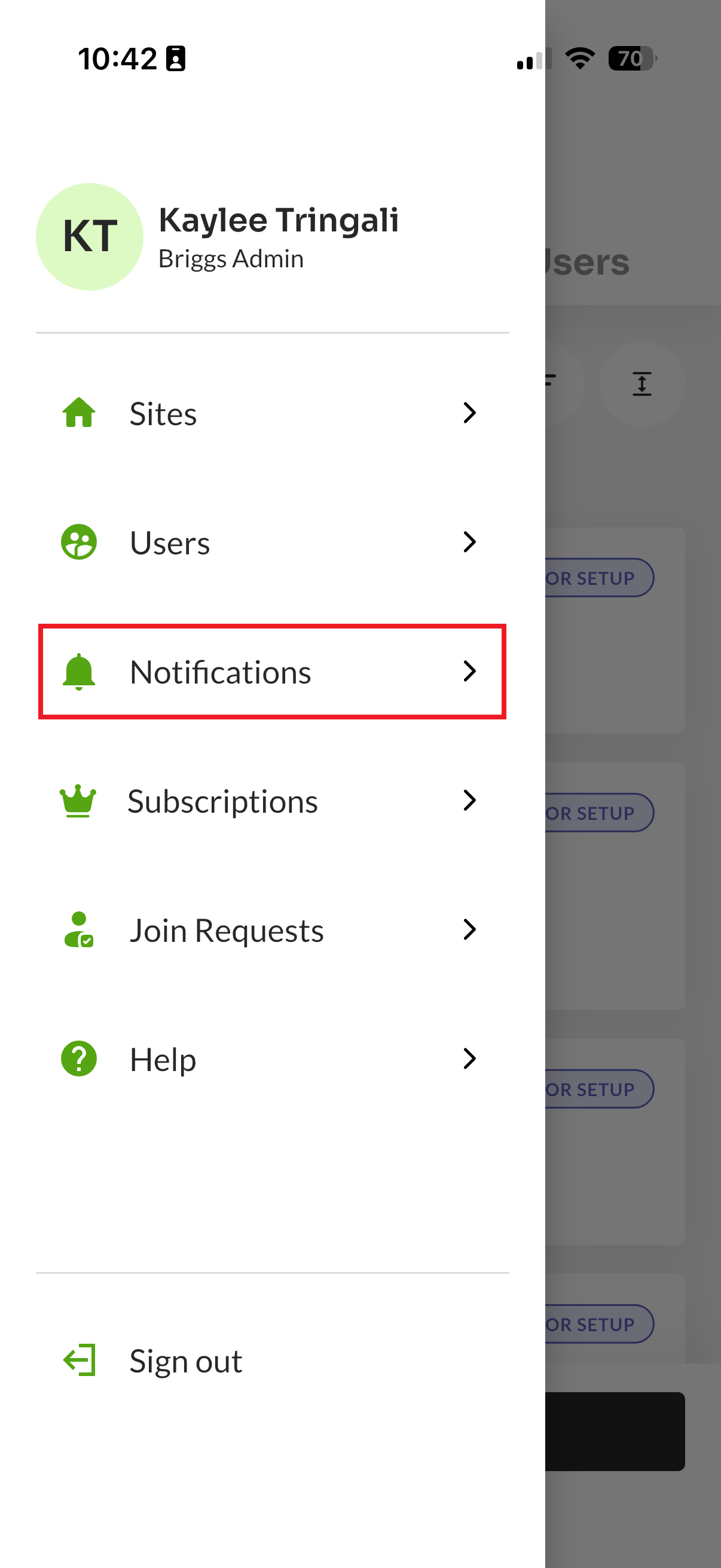
- From the side menu that appears, select "Notifications".
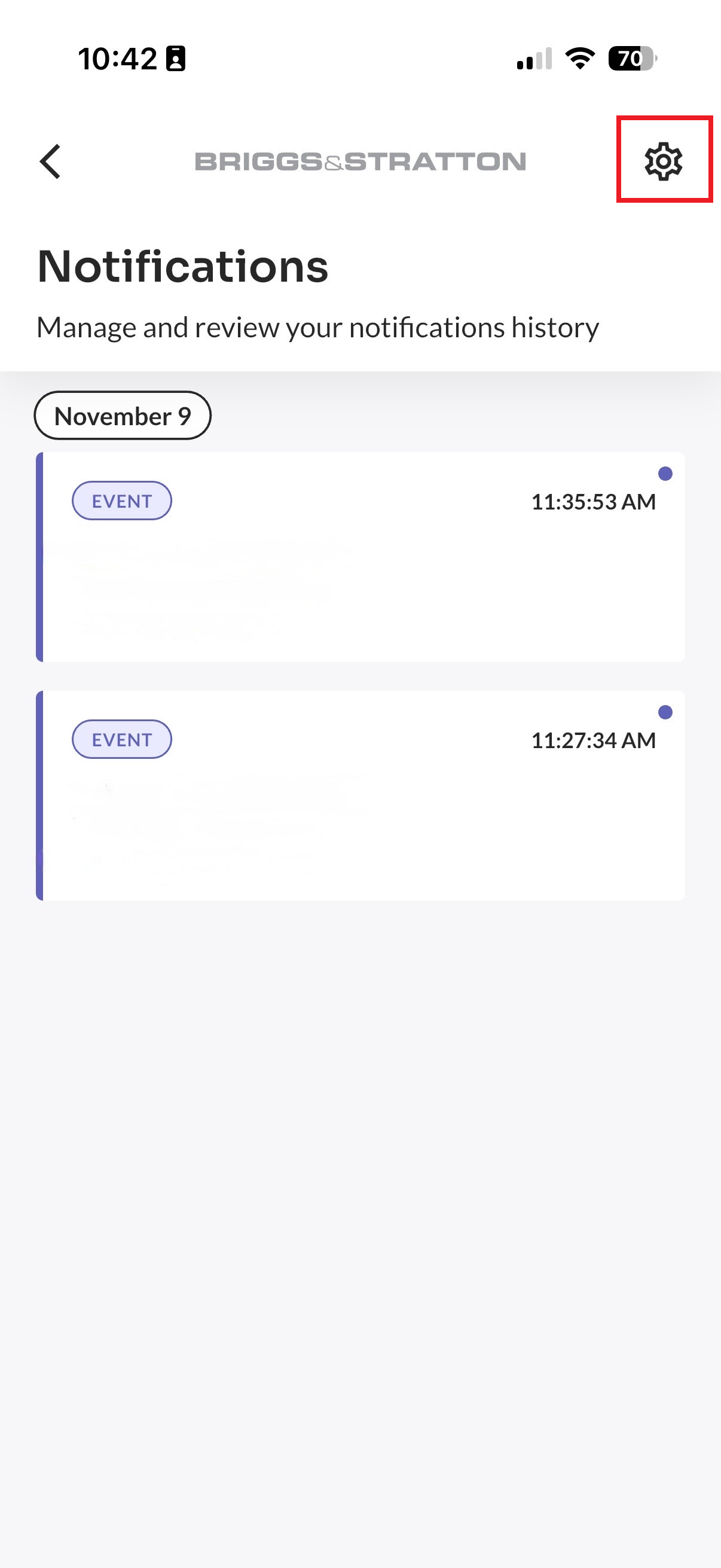
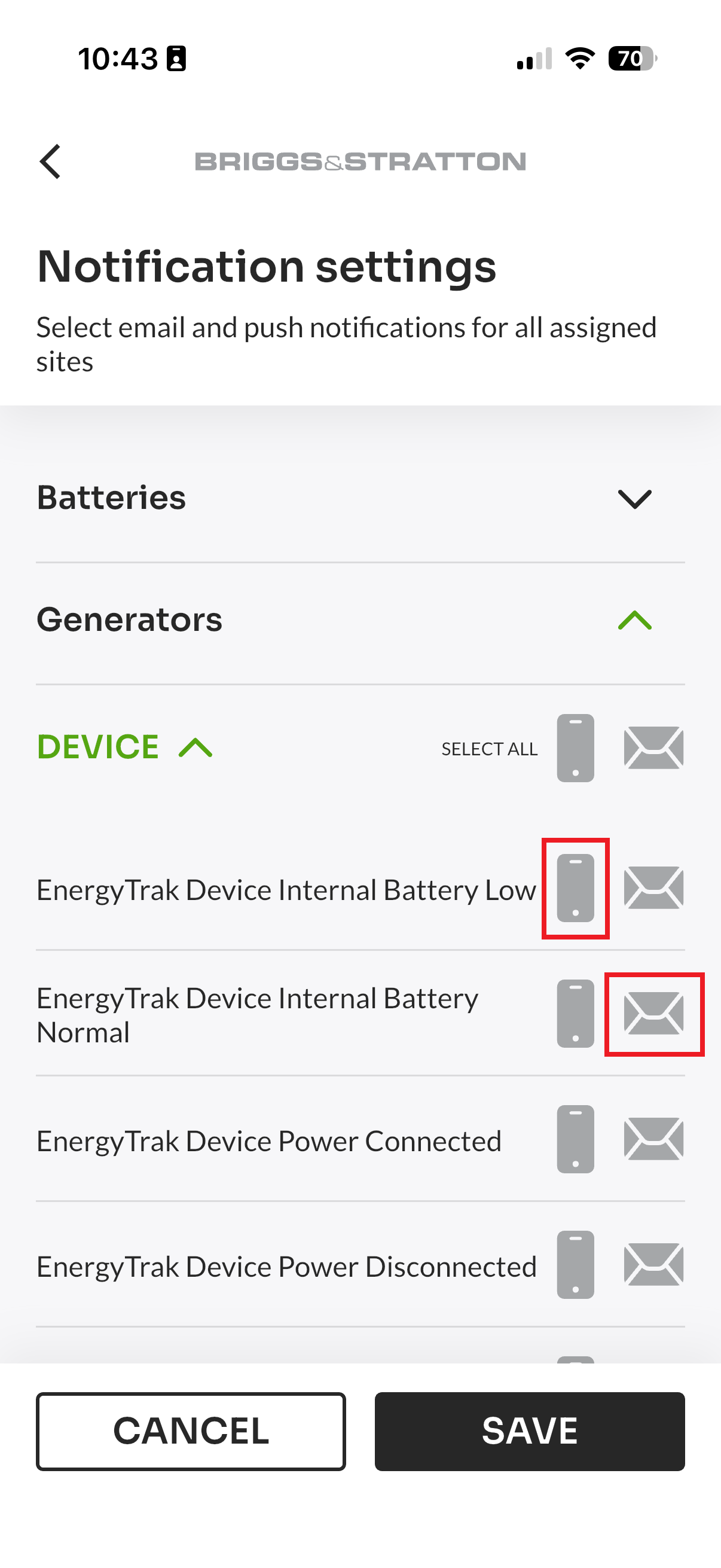
- In the top-right corner of the screen, tap the gear icon. This opens the Notifications settings menu. The Notifications settings menu allows you to select which events trigger a notification and how you’d like to receive it (Push/In-App or Email).
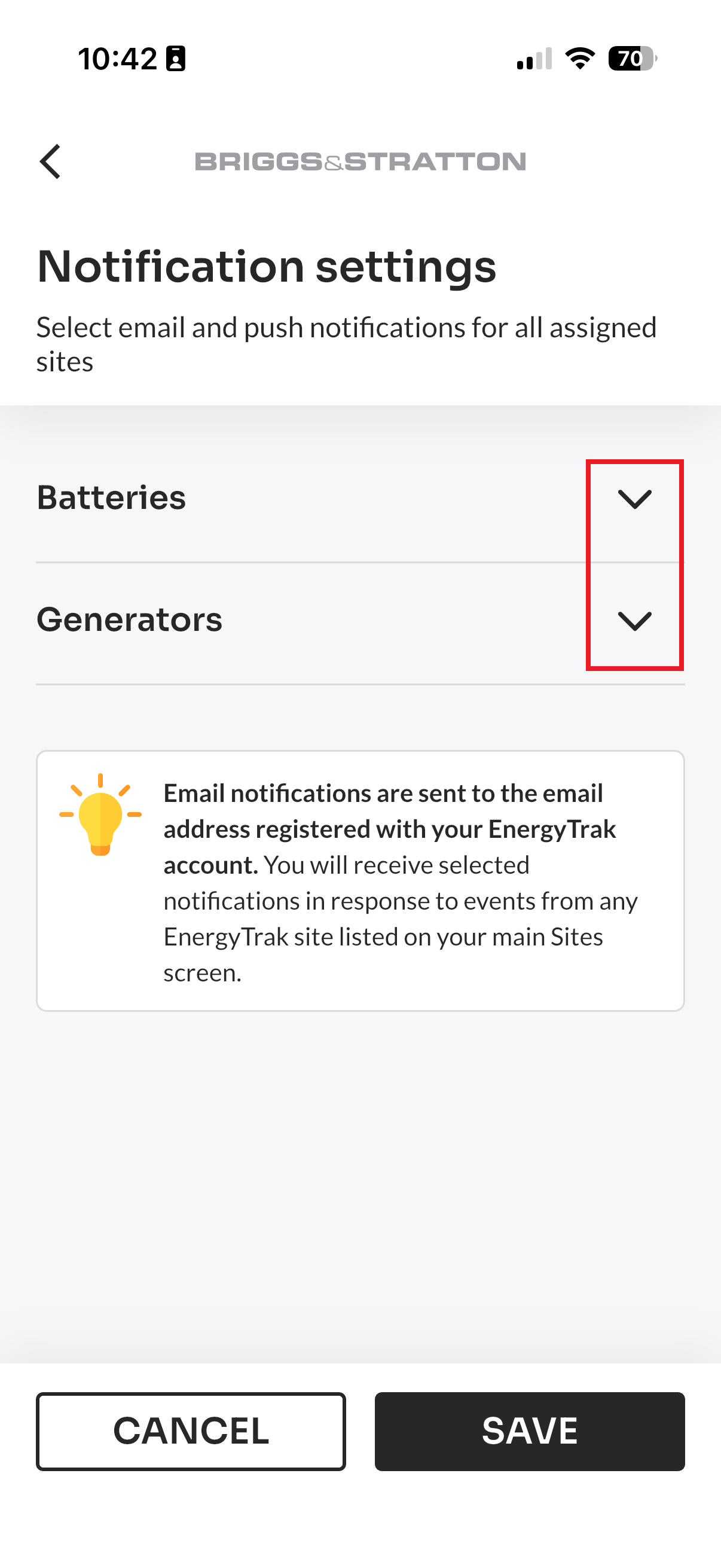
- Expand the category for the device(s) you want to configure (e.g., Batteries or Generators) by tapping the down arrow next to the category name.
- Select the specific events for which you want to receive an alert. Grayed-out icons indicate no delivery method has been selected for the event, while green-shaded icons indicate a delivery method has been selected.
- Tapping the mobile phone icon 📱 enables Push (in-app) notifications for that event.
- Tapping the envelope icon ✉️ enables Email notifications for that event.
- Once you have made all your selections, be sure to tap the “SAVE” button at the bottom of the screen.
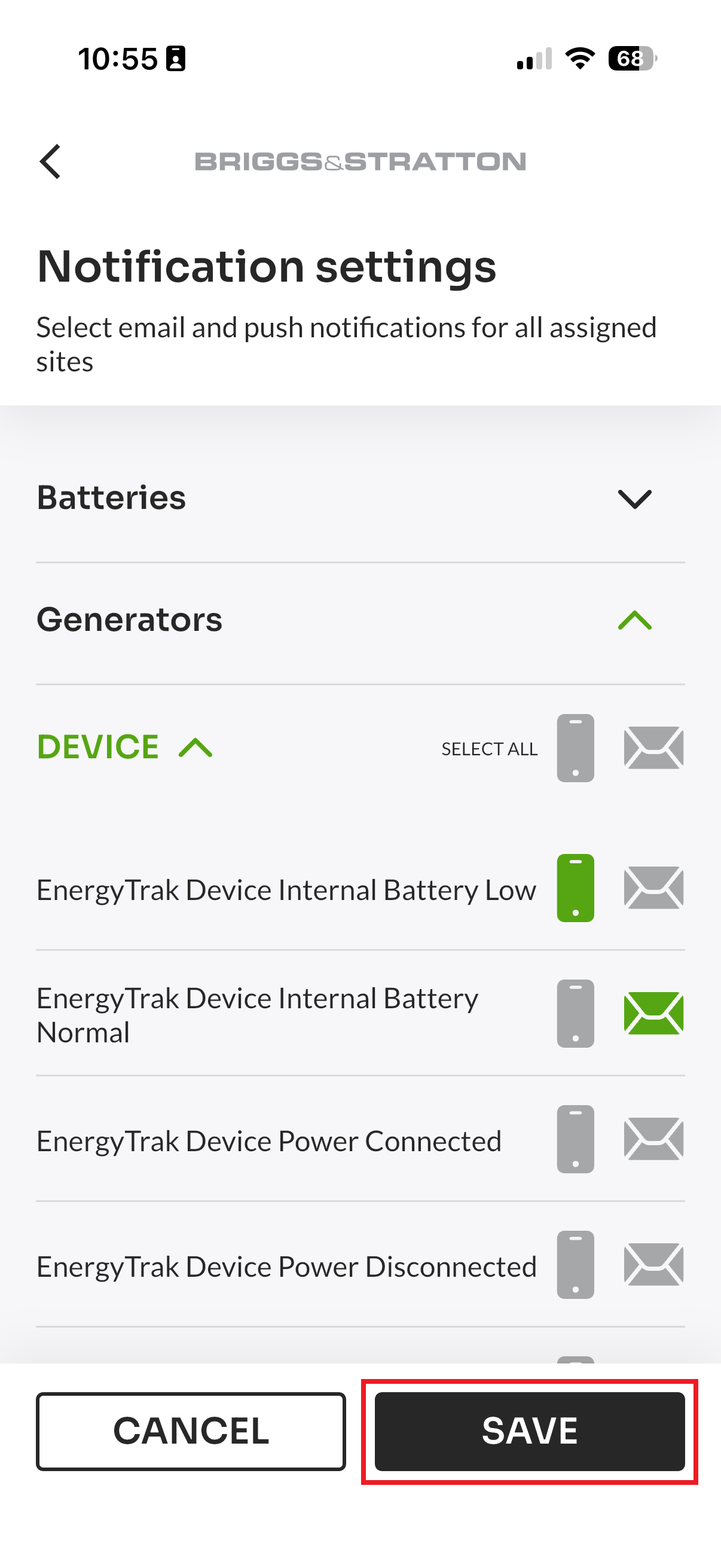
You can select both Push and Email notifications for the same event. Email notifications are sent to the email address associated with your EnergyTrak account.
Recommended Notifications Settings
To maintain optimal awareness of your system's health, we recommend enabling the following notifications. These alerts cover critical events while helping you keep your notification volume manageable.
- General
- Network Connection Lost
- System Update Failed
- Generators
-
Site
- Site State Changed to Stopped
- Site State Changed to Warning
- Site State Changed to Fault
- Site State Changed to Disconnected
- EnergyTrak Site Deactivated
-
Site
- Batteries
-
Faults
- [SELECT ALL]
-
Faults
Additional Notifications to Consider
- General
- System Update Successful
- Generators
-
Site
- Site State Change to Ready
- Site State Change to Exercising
- Site Stage Change to Running
- Generator Running While Grid Power Is Present: When enabled, a notification is issued every hour if the generator is running while grid power is present. This cycle ends automatically once the generator is stopped.
-
Site
Notification Features
Delivery Failure Reporting
The system actively monitor the delivery success of Push and Email alerts. If an alert cannot be delivered, the notification record will display a "🚫 not delivered" status alongside the specific reason for the failure.
Site Mute
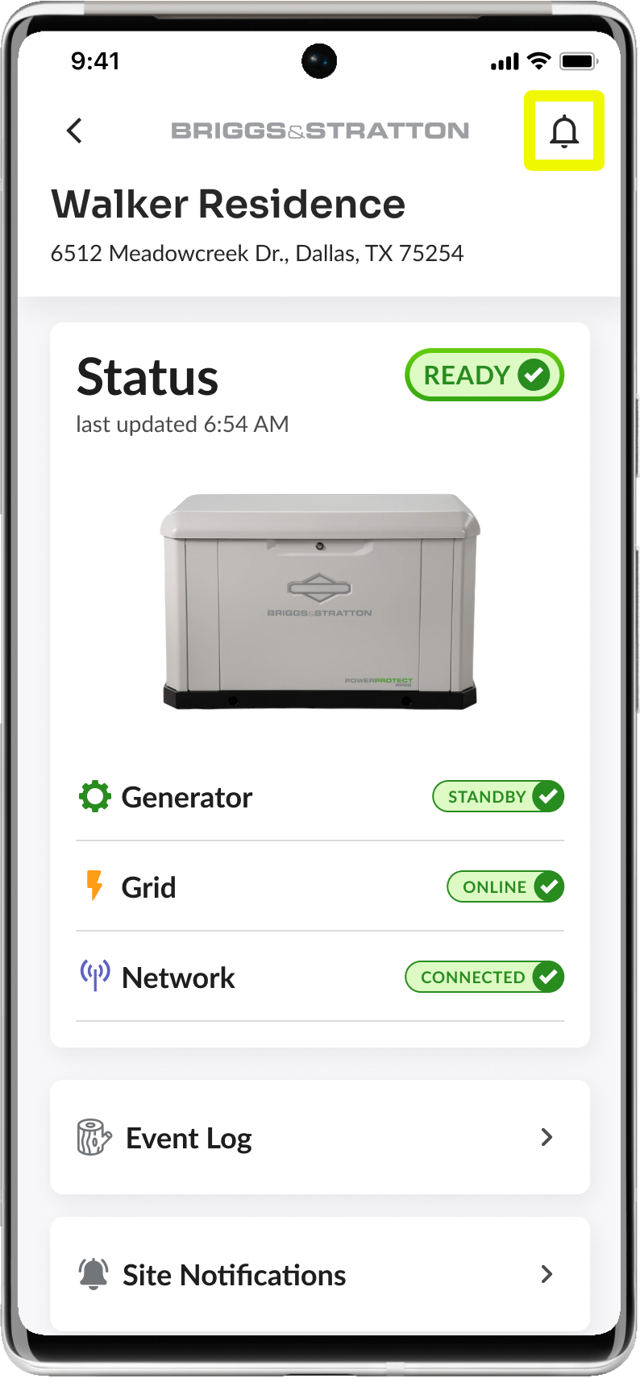
Notifications can be turned off on any site by toggling this feature using the bell icon 🔔 in the top-right corner of the Site Dashboard screen, highlighted in yellow below.
Notifiable Events
The table below displays all notifications which can be enabled in EnergyTrak.
UNDER CONSTRUCTION
Please excuse any missing information as we work to complete this knowledge article.
| System Type | Event Type | Event Title | Description | Corresponding InfoHub Alert(s) |
|---|---|---|---|---|
| General | N/A | Network Connection Lost | N/A | |
| General | N/A | Network Connection Restored | N/A | |
| General | N/A | System Update Available | N/A | |
| General | N/A | System Update Failed | N/A | |
| General | N/A | System Update Successful | N/A | |
| Generator | Site | Generator Running While Grid Power Is Present | The generator is "Running" while utility power is present. An initial alert is sent at the 1-hour mark, followed by recurring hourly notifications until the generator is stopped or Remote Start is deactivated. | N/A |
| Generator | Site | Site State Change to Ready | The generator is in standby mode and all systems are ready for the next power outage. | N/A |
| Generator | Site | Site State Change to Exercising | The generator is "Running" while utility is "Online." This is typically a self-test done to help ensure the generator is ready for operation. | Generator Exercise Started, Generator Exercise (WiFi) |
| Generator | Site | Site State Change to Running | A power outage has been detected. The generator is running and supplying power to the site. | Generator Running - No Utility Power (WiFi), Generator Running |
| Generator | Site | Site State Change to Stopped | The generator is in "Standby" and utility is in "Offline." This is not an expected condition unless the generator is in the process of starting and running. | Generator Off - No Utility Power, WiFi - Generator Stopped |
| Generator | Site | Site State Change to Warning | The system has detected a fault that requires immediate attention. | Generator Fault, All Alarms (WiFi) |
| Generator | Site | Site State Change to Disconnected | The EnergyTrak device has not reported to the cloud as expected. It has been over 24 hours since an update was last received. | Device Not Reporting (Black "i"), WiFi - Device Not Reporting |
| Generator | Site | EnergyTrak Site Deactivated | EnergyTrak services for this site have been deactivated. View the main site screen for more information on activation. | N/A |
| Generator | System | Generator Started Running | The generator has started running. | N/A |
| Generator | System | Generator Stopped Running | The generator has stopped running. | N/A |
| Generator | System | Grid Power Outage | Incoming power from the utility grid is no longer detected and offline. | Utility Lost |
| Generator | System | Grid Power Restored | Incoming power from the utility grid is now detected and online | Utility Power Restored |
| Generator | System | Generator Fault Detected | A generator fault has been detected which may prevent it from running. | Generator Fault, All Alarms (WiFi) |
| Generator | System | Generator Fault Cleared | A previously detected fault condition on the generator has been resolved. | Generator Fault Cleared |
| Generator | System | EnergyTrak Device Power Disconnected | The EnergyTrak device has lost power. | InfoHub Device Power Disconnected |
| Generator | System | EnergyTrak Device Power Connected | Power has been restored to the EnergyTrak device. | InfoHub Device Power Connected |
| Generator | System | EnergyTrak Device Temperature Is High | The EnergyTrak device is operating at a high temperature. | N/A |
| Generator | System | EnergyTrak Device Temperature Is Normal | The temperature of the EnergyTrak device has returned to a normal operating range. | N/A |
| Generator | System | Remote Start Request Received | A request to start the generator from EnergyTrak has been received. This request attempts to start the generator if conditions allow. | N/A |
| Generator | System | Remote Start Request Cancelled | The previous request to start the generator from EnergyTrak has been removed. | N/A |
| Generator | System | Generator Battery Voltage Is Low | The generator's starter battery is low. A weak battery can prevent the generator from starting. | Generator Low Battery Condition |
| Generator | System | Generator Battery Voltage Is Normal | The generator's starter battery has returned to a normal voltage level. | N/A |
| Generator | System | Transfer to Grid Power | The transfer switch has changed to utility grid power. | N/A |
| Generator | System | Transfer to Generator Power | The transfer switch has changed to generator power. | N/A |
| Generator | System | Generator in Manual Mode | The generator is now in "Manual Mode" and will not start automatically during an outage. | N/A |
| Generator | System | Generator in Auto Mode | The generator is now in "Auto Mode" and is ready to start automatically during a power outage. | N/A |
| Battery | Faults/Warnings/Events | General | N/A | |
| Battery | Faults/Warnings/Events | Communication | N/A | |
| Battery | Faults/Warnings/Events | High Current Charge | N/A | |
| Battery | Faults/Warnings/Events | High Current Discharge | N/A | |
| Battery | Faults/Warnings/Events | High Temperature | N/A | |
| Battery | Faults/Warnings/Events | Low Temperature | N/A | |
| Battery | Faults/Warnings/Events | High Voltage | N/A | |
| Battery | Faults/Warnings/Events | Low Voltage | N/A | |
| Battery | Faults/Warnings/Events | Cell Voltage | N/A |